ReturnRider
Driver Guide
Your complete guide to getting approved, going online, accepting jobs, and getting paid.
Hover over any screenshot to replace it with your own image.
Getting Approved
Apply to Drive
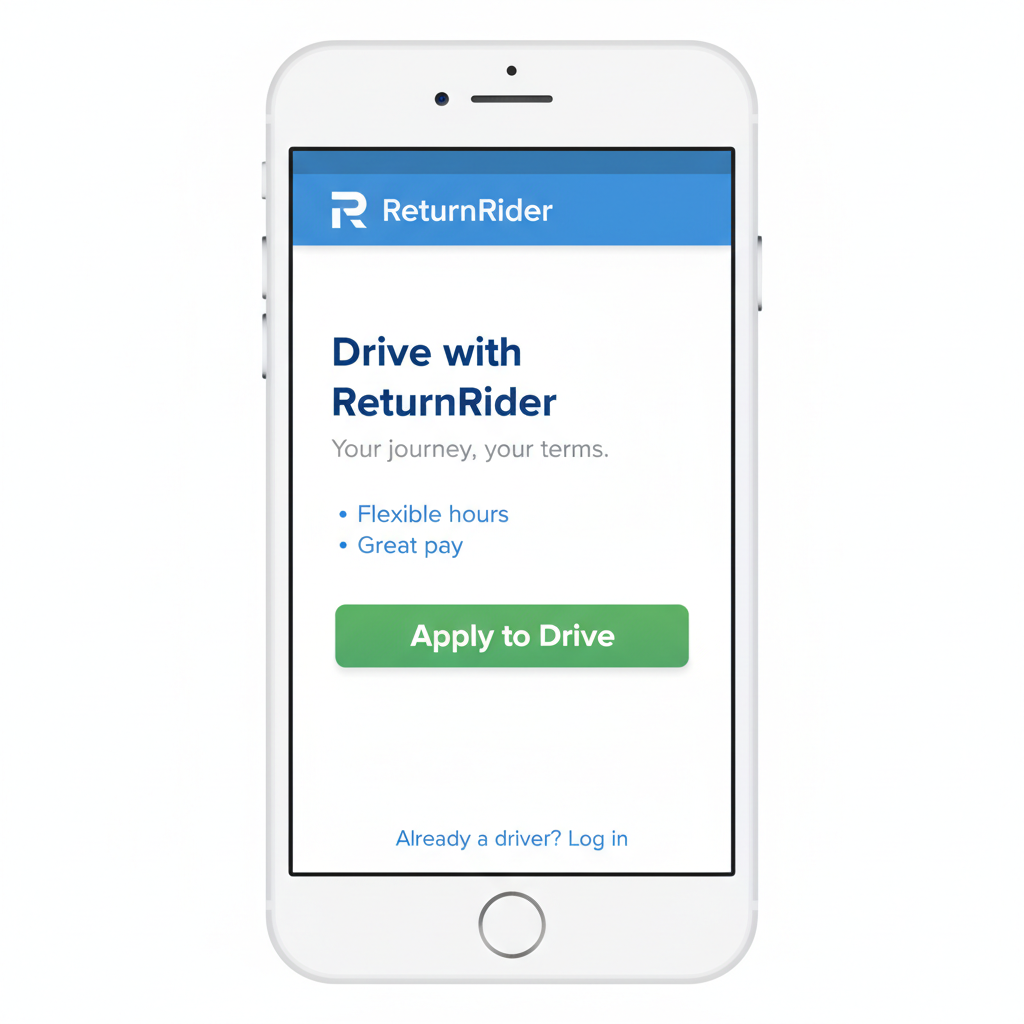
Visit the app and tap "Drive with ReturnRider". You do not need an account to view the landing page — create one when ready to apply.
Complete Your Profile
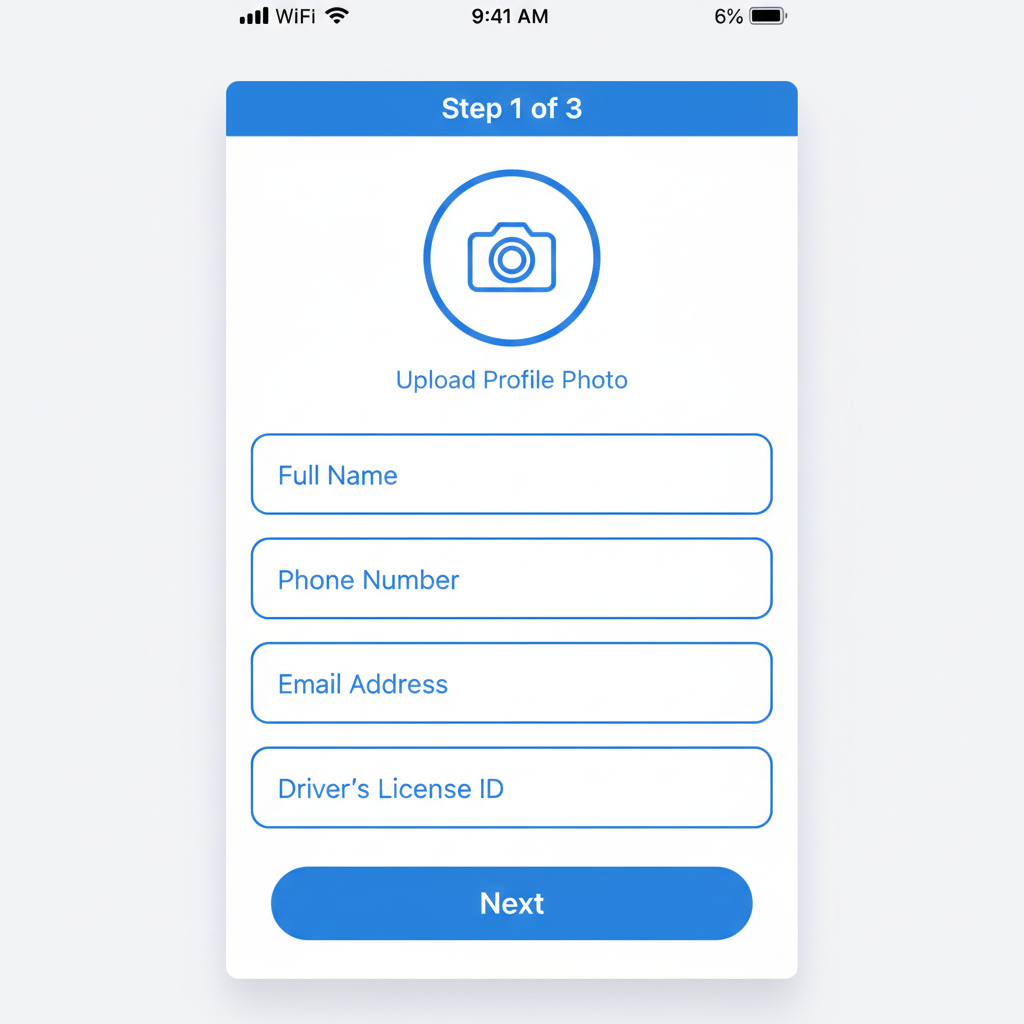
Fill in your personal info (name, phone, email), upload a profile photo, and enter your vehicle details — make, model, year, color, and license plate.
Upload Documents
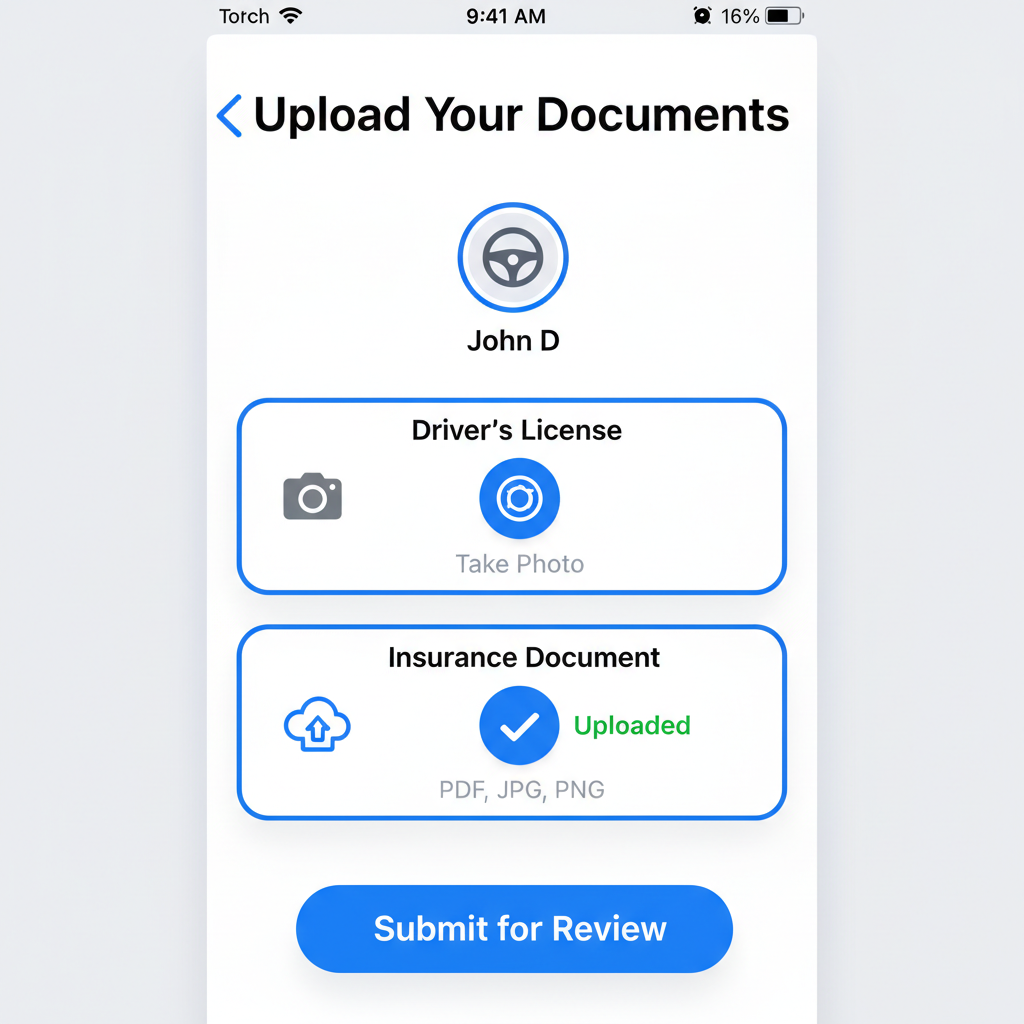
Upload a photo of your Driver's License and your current auto Insurance document. Accepted formats: JPG, PNG, or PDF.
Background Check
After submitting, you will receive an email from Checkr. This typically takes 2-3 business days. Check your inbox (including spam).
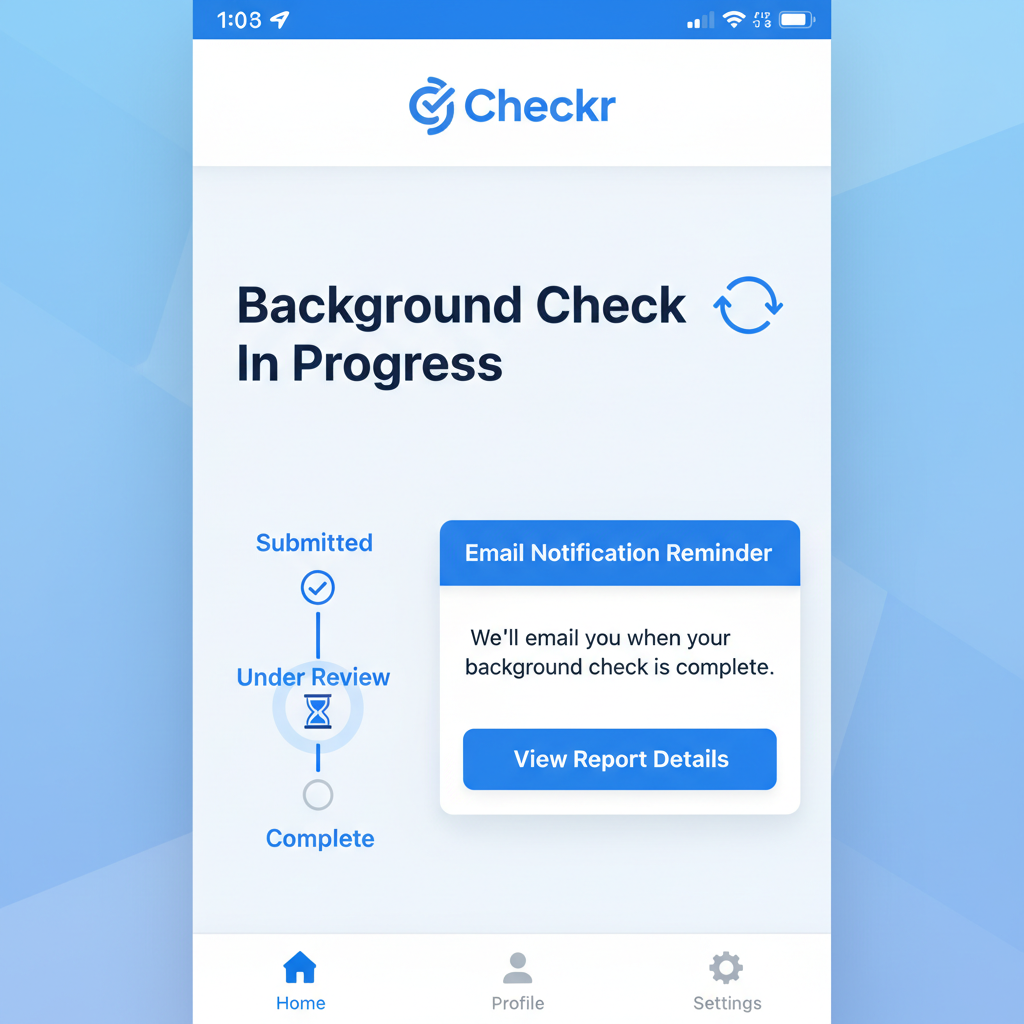
Admin Approval
Once your background check clears, our team reviews your documents. You will receive an email when your account is approved.
Setting Up Payouts (Required)
Connect Your Bank Account
Go to Driver Profile → Payout Account → "Connect Bank Account." You will be redirected to Stripe to securely link your bank account or debit card.
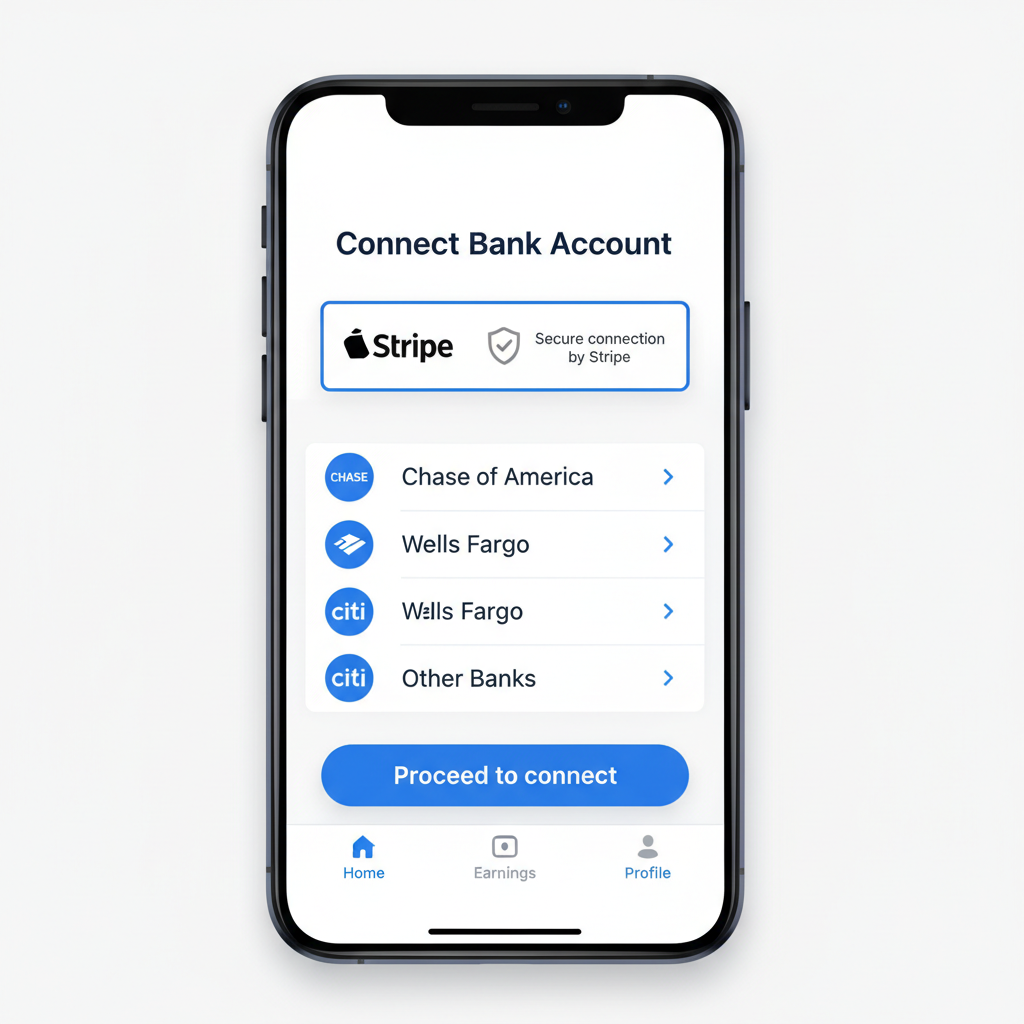
Verify Your Identity
Stripe requires identity verification (SSN last 4, date of birth). This is a one-time step required by US financial regulations.
Payouts Enabled
Once Stripe verifies your account, your Profile will show "Payouts Enabled." You can then receive earnings after each completed job.
Can't receive payouts yet?
Visit Driver Profile → Payout Account → "Complete Verification" to see any outstanding requirements from Stripe.
Going Online & Accepting Jobs
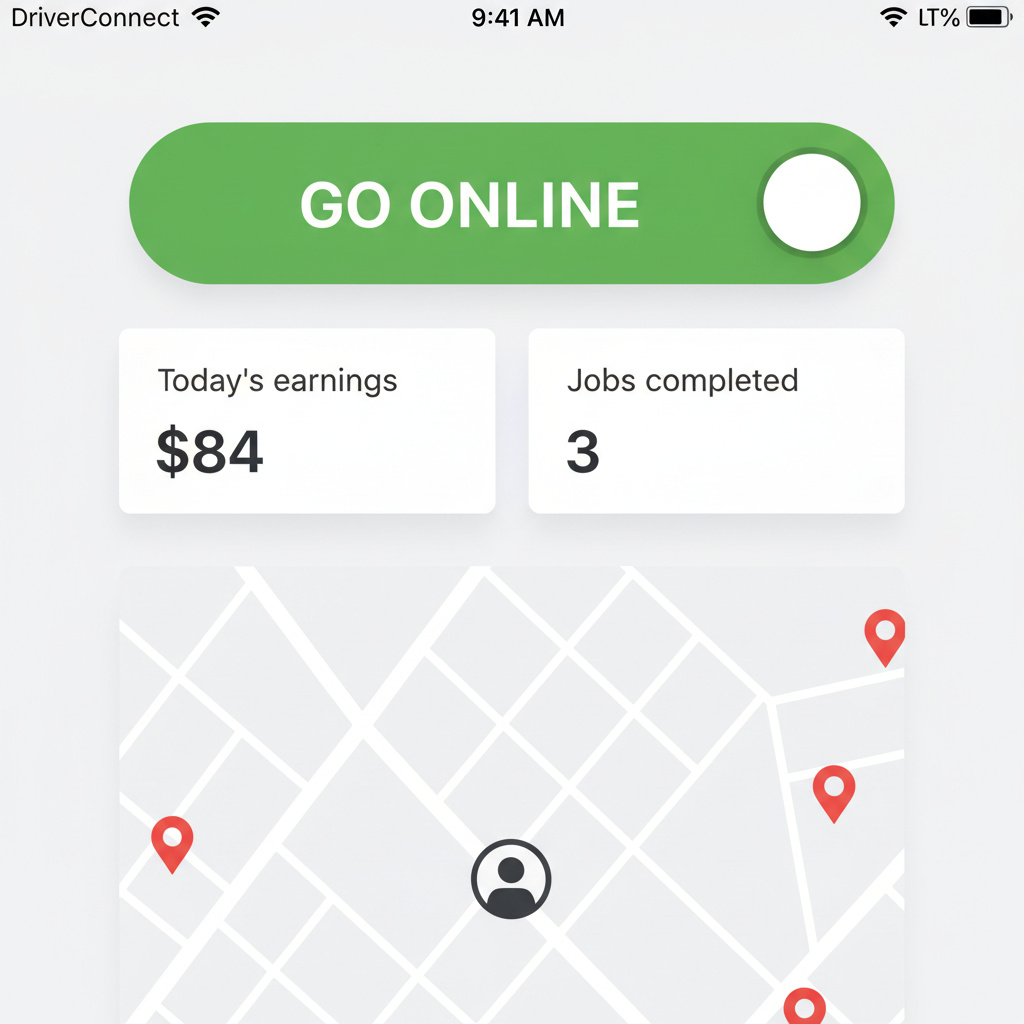
Go Online
Open the Driver Dashboard and toggle "Go Online." Your location will broadcast to customers in your area. Ensure location permissions are enabled.
Receive a Job Notification
When a customer books in your area, you will receive a push notification with job details: pickup address, packages, drop-off location, and estimated earnings.
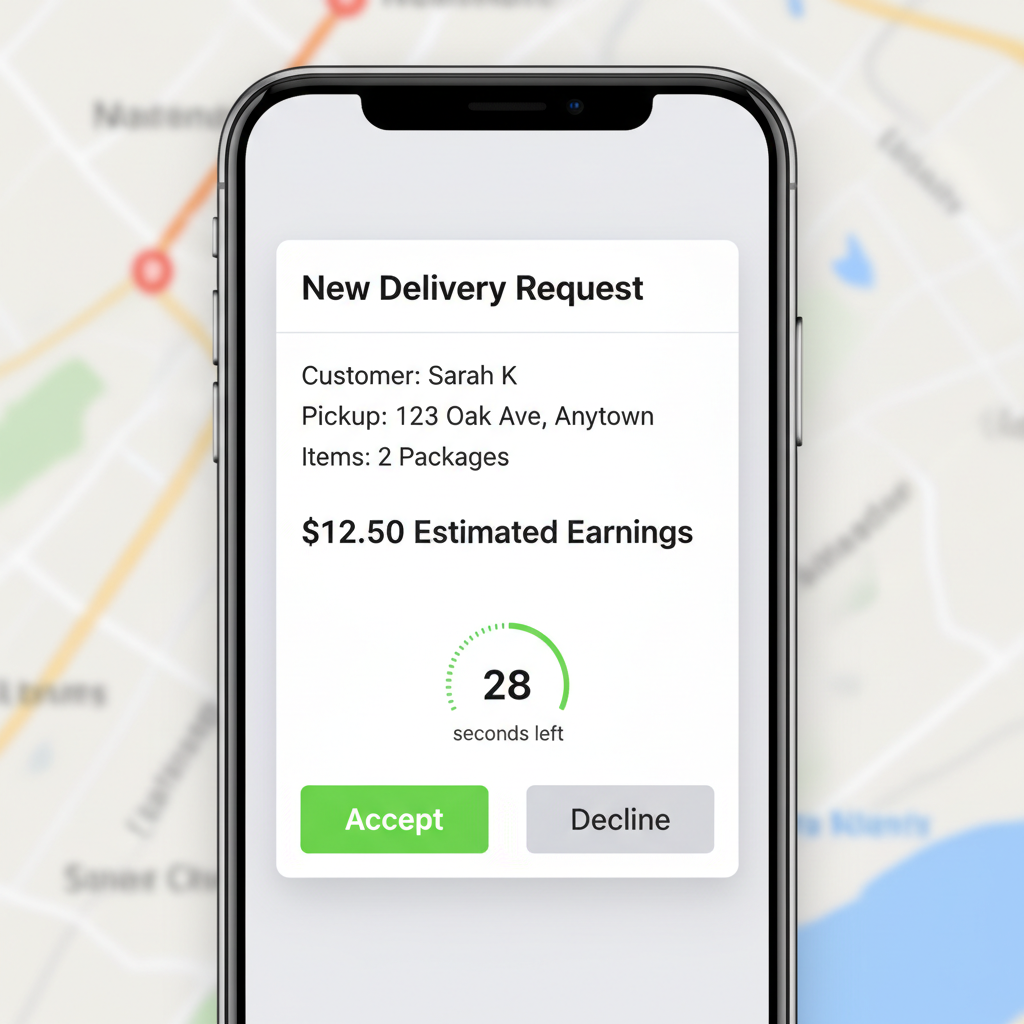
Accept or Decline
You have 30 seconds to accept or decline. If you decline or do not respond, the job will be offered to another nearby driver.
Navigate to Pickup
After accepting, tap "Navigate" on the job card to open your preferred maps app. Head to the customer address.
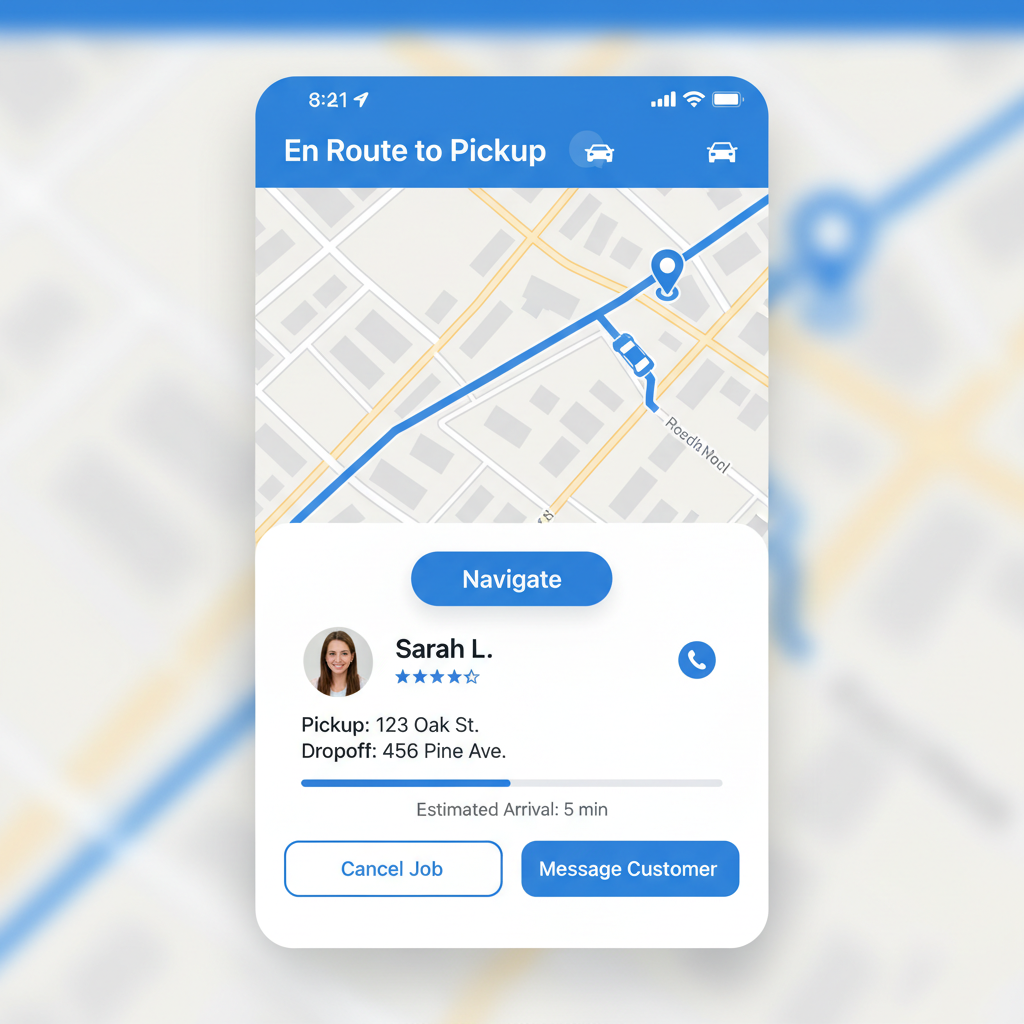
Confirm Pickup
When you arrive, verify the packages match the order. Take a photo and tap "Confirm Pickup." The customer will be notified.
Navigate to Drop-off
Tap "Navigate to Drop-off" for directions to the facility (UPS Store, FedEx Office, Staples, or Whole Foods). Drop off all packages.
Confirm Delivery
Take a photo at the drop-off location and tap "Confirm Delivery." This completes the job and triggers your payout.
Understanding Your Earnings
Base Pay per Job
Varies by distance and package count
Customer Tip
Added directly to your payout
Payout Timing
After job completion via Stripe
Earnings Potential
During busy periods and high-demand areas
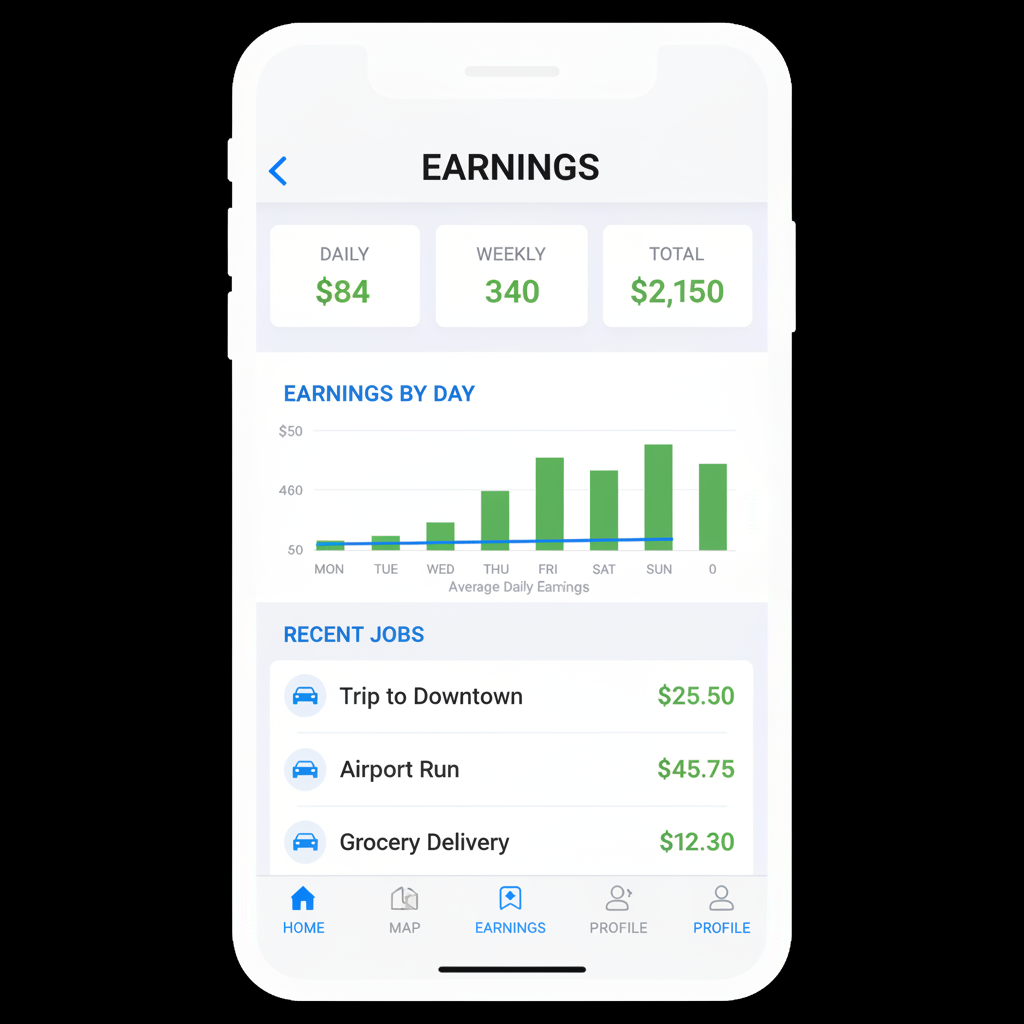
Track your earnings anytime
Visit the Earnings tab in the Driver Dashboard to see daily, weekly, and total earnings with a full job history.
Best times to drive
Weekday mornings and evenings see the highest customer demand. Keep notifications on to catch jobs quickly.
Tips, Rules & Best Practices
Maintain a high rating
Be on time, handle packages carefully, and be polite. Drivers below 4.0 stars may be temporarily suspended.
Use in-app chat
If you need to contact the customer, use the in-app chat on the job screen. Avoid sharing personal contact info.
Handle packages safely
Never open packages. Take care not to damage items. Photograph any pre-existing damage before pickup.
Declining jobs
Frequently declining jobs may reduce your dispatch priority. Only go online when you are ready to accept.
Stay in your service area
Jobs are dispatched based on your GPS location. Make sure location access is set to Always Allow.
Questions or Issues?
Reach our driver support team through the app at any time.
Driver Profile → Help & Support
© 2026 ReturnRider · returnrider.app · Driver Guide v1.0